Fit Text to Area.
Shrink text to fit a maximum width and height.
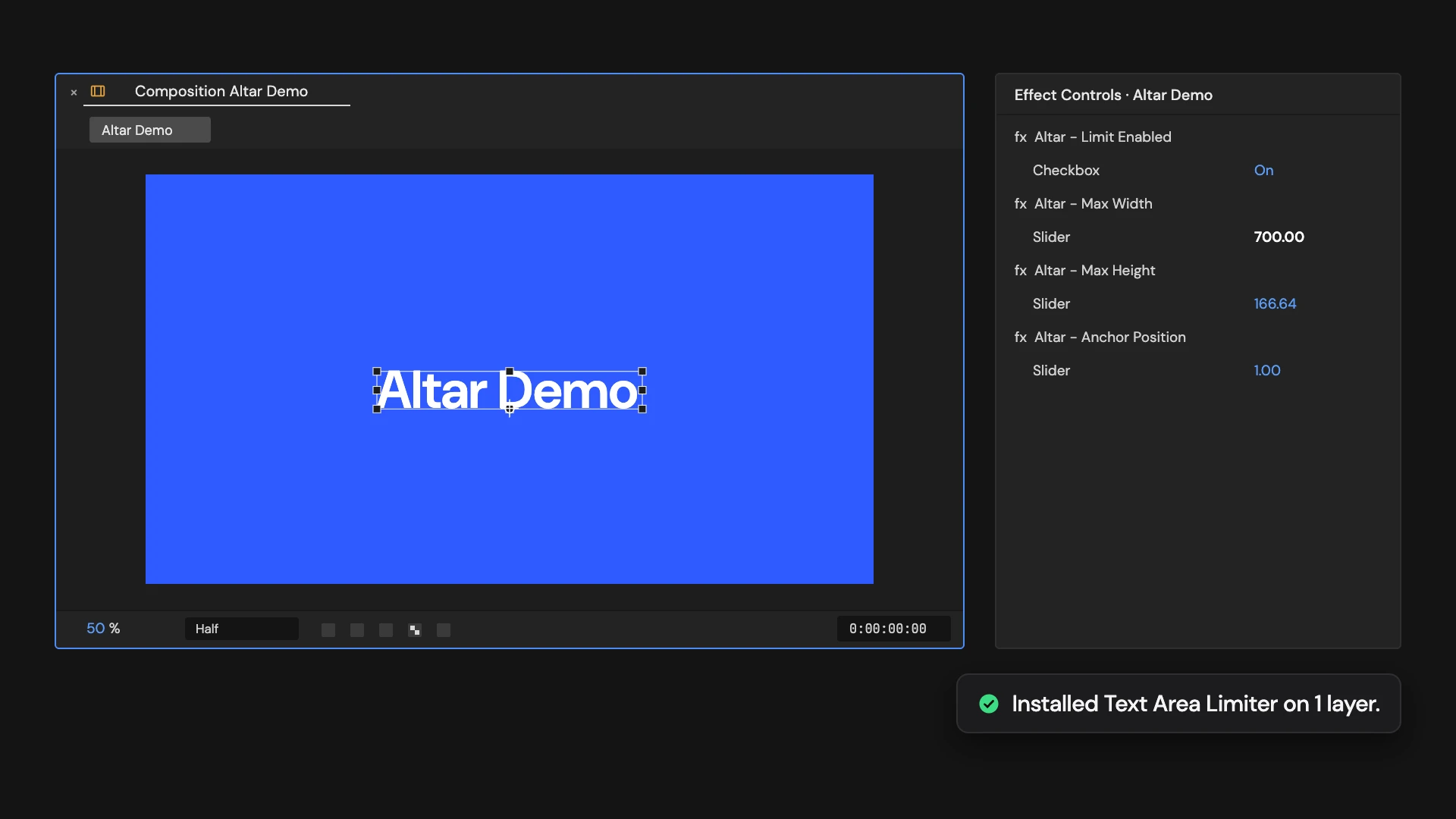
What it does
Adds Max Width, Max Height, Limit Enabled and Anchor Position controls to each selected text layer. When the text grows past either maximum it scales down evenly to fit, and it never scales up. The maximums start just above the text’s current size, and 0 removes the limit on that side. Anchor Position 1 leaves the anchor point where it is; 2 to 10 move it to a corner, edge or the centre of the text (2 top-left, 6 centre, 10 bottom-right).
Controls
- Click: Install Text Area Limiter
Details
- Category: Text Tools
- Kind: Script
- Also searched as: text, area, limit, fit, scale, responsive
Guide
Install it
Select one or more text layers and click Fit Text to Area. Nothing moves yet: the four controls it adds to each layer start just above the text’s current size.
- Altar - Limit Enabled: turn the limit off to show the text at its own scale again.
- Altar - Max Width and Altar - Max Height: the largest the text may be, in the layer’s own pixels, before your own Scale is applied. 0 means no limit on that side.
- Altar - Anchor Position: where the text shrinks towards.
How it fits
When the text is wider than Max Width or taller than Max Height, it scales down evenly until it fits both. It never scales up, and your own Scale, keyframed or not, is kept and multiplied.
Anchor Position 1 leaves the anchor point where it is. Values 2 to 10 move the anchor point to a point on the text, left to right and top to bottom:
| Left | Centre | Right | |
|---|---|---|---|
| Top | 2 | 3 | 4 |
| Middle | 5 | 6 | 7 |
| Bottom | 8 | 9 | 10 |
Moving the anchor point does not adjust Position, so the text shifts on screen when you change it.
Good to know
It writes expressions on the layer’s Scale and Anchor Point, replacing any expressions already there. Running it again resets the controls to the text’s current size. One Undo removes it.