Add Looping Wiggle.
Add a seamlessly looping wiggle to properties.
What it does
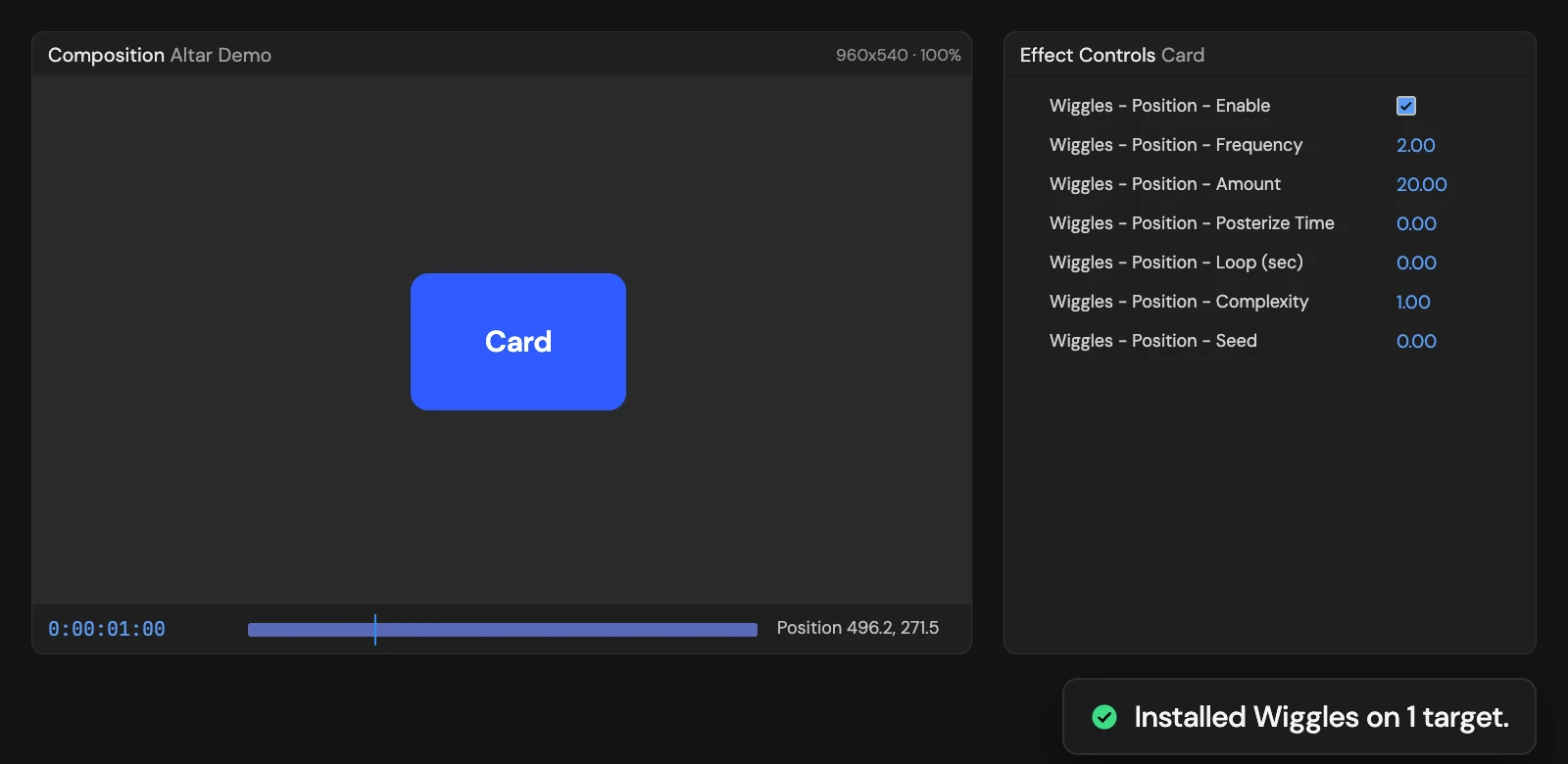
Wiggles each selected property around its own value and loops it seamlessly over the comp’s length, or over Loop (sec) once you set it. Every property gets its own Frequency, Amount, Posterize Time, Complexity and Seed controls in Effect Controls. Select property rows, not just layers.
Controls
- Click: Rig selected properties
Details
- Category: Animation Tools
- Kind: Script
- Also searched as: wiggle, random, loop, property, animation
Guide
Use it
Select the property rows to wiggle in the Timeline (transform properties such as Position, Scale, Rotation or Opacity), then click Add Looping Wiggle. Selecting a layer alone is not enough: open it and select the properties.
Each property gets its own set of controls in Effect Controls, named after it, for example Wiggles - Position - …:
- Frequency (2) and Amount (20) are the wiggles per second and how far it moves, as in After Effects’ own wiggle.
- Loop (sec) sets how long one loop lasts. At 0 the loop lasts the whole comp. The end of each loop blends back into its start, so it repeats without a jump.
- Posterize Time steps the wiggle at that many frames a second. 0 keeps it smooth.
- Complexity adds finer detail on top of the main wiggle.
- Seed picks a different random pattern.
- Enable turns the wiggle off.
The wiggle rides on top of the property’s own value, so keyframes underneath still play.
Good to know
- Opacity at 100% can only wiggle down; drop it a little to see both directions.
- Shape paths cannot be wiggled.
- The Tool replaces any expression already on the selected properties. One Undo removes the wiggle and its controls.