Pre-compose and Crop.
Pre-compose selected layers, then crop.
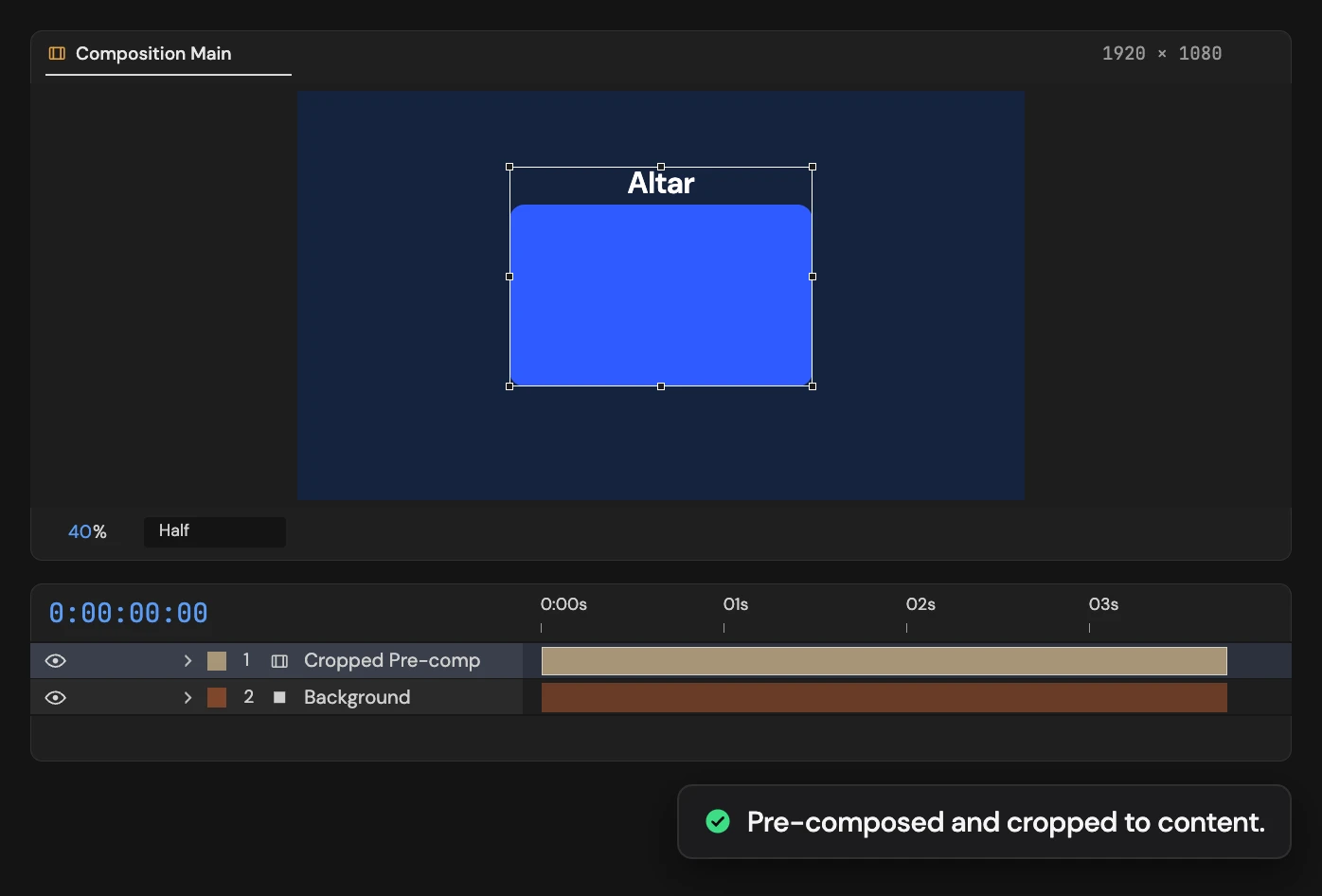
What it does
Pre-composes the selected layers into a new composition named “Cropped Pre-comp”, then crops it to the bounding box of its content. The pre-comp layer replaces the originals and stays exactly where they were on screen. The crop is measured on a single frame, so animation that travels further can be cut off. 3D layers aren’t supported.
Controls
- Click: Pre-compose selection and crop
Details
- Category: Composition Tools
- Kind: Script
- Also searched as: composition, comp, crop, precompose, precomp, group, canvas
Guide
Pre-compose and crop
- Select the 2D layers you want to group.
- Click Pre-compose and Crop.
The layers move into a new composition named Cropped Pre-comp, with all their attributes. Its canvas is cropped to the bounding box of their content, with no padding, and the new precomp layer sits exactly where the originals were. Layers parented to the group keep their place too.
What counts
Nulls, guides, adjustment layers and hidden layers are left out of the measurement. The crop is measured on a single frame, the new precomp’s current time, so animation that leaves those bounds on other frames can be cut off. Selected 3D layers stop it with a message before anything changes.
Some parenting can’t be pre-composed safely, for example animated, skewed or 3D parents. In that case nothing changes and Altar tells you why.
Each click is a single undo step, including the new composition.