Lock / Unlock Shy Layers.
Lock and hide shy layers, or unlock and show them.
What it does
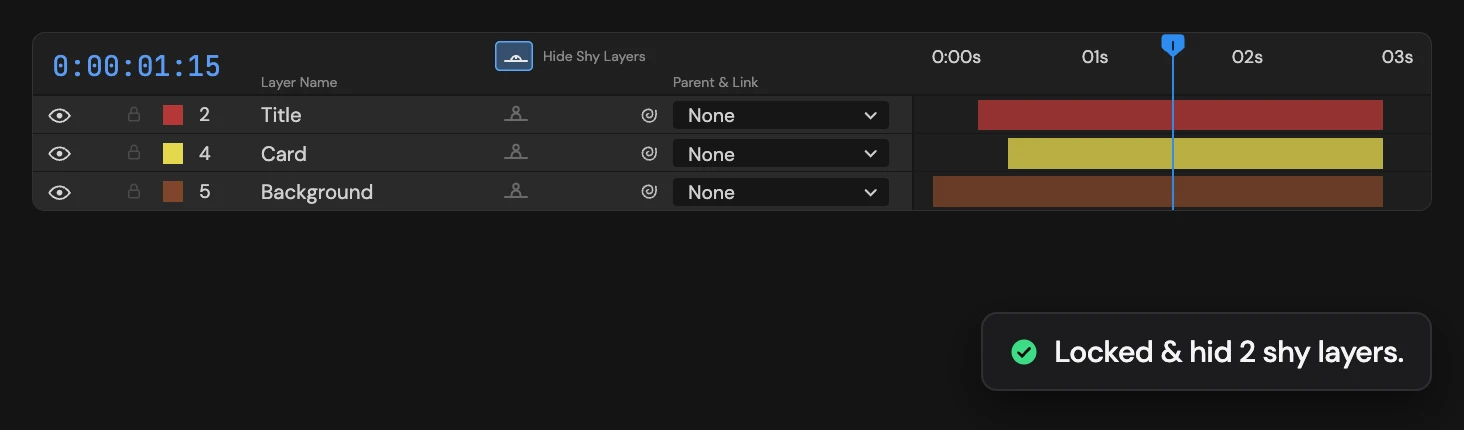
Locks every shy layer in the active comp and turns on Hide Shy Layers, or unlocks them and turns it off when the bottom shy layer is already locked. Layers that are not shy are left alone.
Controls
- Click: Lock / unlock shy layers
Details
- Category: Layer Tools
- Kind: Script
- Also searched as: lock, unlock, shy, hide, layers
Guide
Use it
Mark the layers you want to tuck away as Shy in the Timeline, then click Lock / Unlock Shy Layers. Every shy layer locks and the comp’s Hide Shy Layers switch turns on, so they disappear from the Timeline and cannot be nudged by accident. Click again to unlock them and show them.
The bottom shy layer decides which way it goes: if it is unlocked, all shy layers lock and hide; if it is locked, they unlock and show.
Layers that are not shy keep their lock, and the selection is ignored. A comp without shy layers tells you so and stays as it is. One Undo restores the locks and the switch together.