Script
Add Golden Ratio Overlay.
Add a fitted golden-ratio guide layer.
What it does
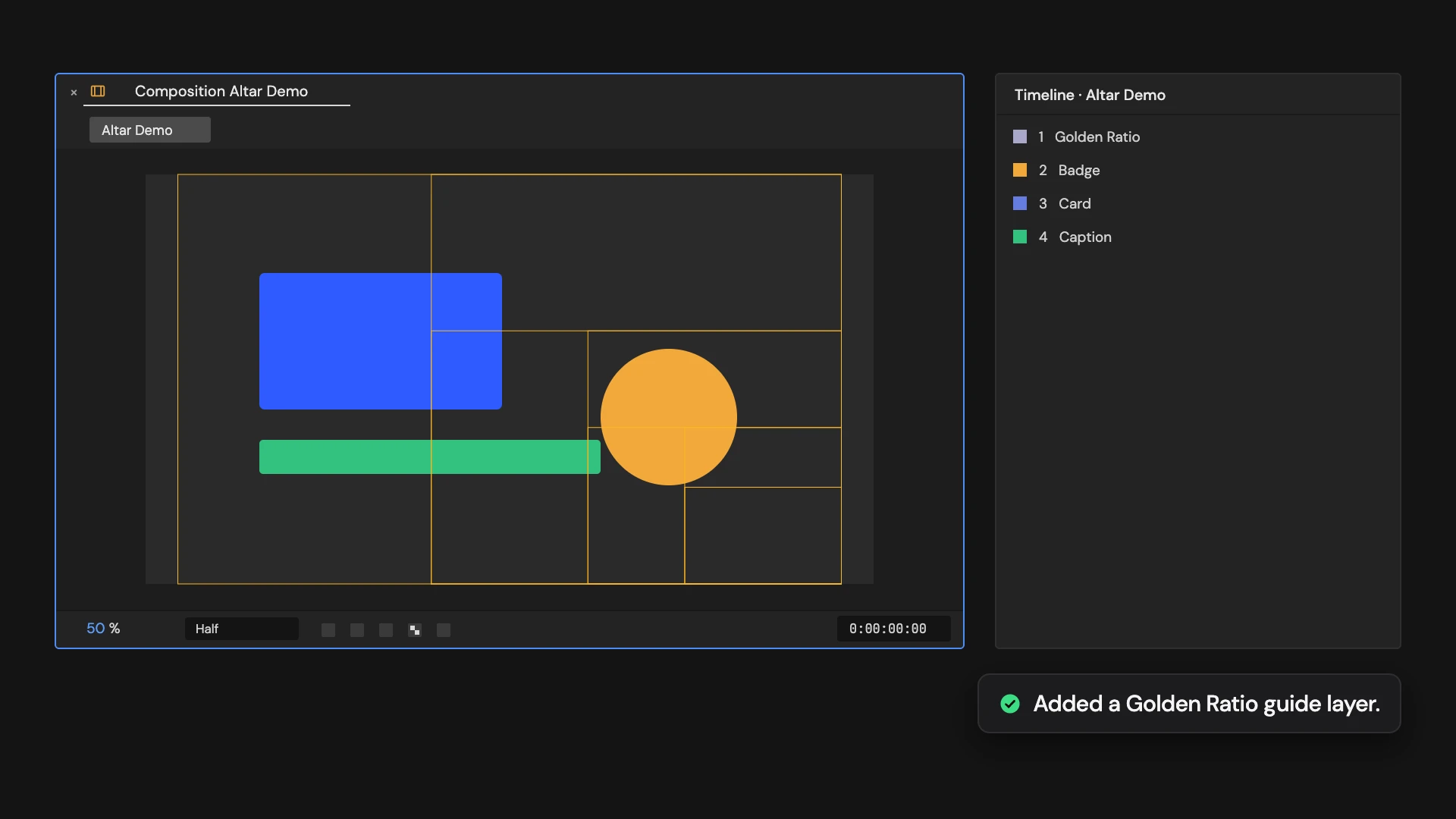
Adds a Golden Ratio guide layer of seven nested golden rectangles, centered and fitted to the comp. In a portrait comp the overlay is turned on its side. Guide layers don’t render.
Controls
- Click: Add golden-ratio overlay
Details
- Category: Guide Tools
- Kind: Script
- Also searched as: guides, golden, ratio, phi, composition
Guide
Add the overlay
Open the comp and click Add Golden Ratio Overlay. No selection is needed.
A shape layer called Golden Ratio is added as a guide layer. It holds seven nested golden rectangles in thin orange lines, each one the previous rectangle divided by the golden ratio, closing in on the bottom-right corner. The overlay is centered and scaled to fit inside the comp. In a portrait comp it is turned on its side.
Good to know
- Guide layers show in the viewer but not in renders, or in comps this one is nested in.
- It is a normal shape layer: move, scale, flip or recolor it to frame a different part of the shot.
- Clicking again adds another overlay. Delete the layer, or use Edit > Undo, to remove it.