Merge Shape Layers.
Combine selected shape layers into one.
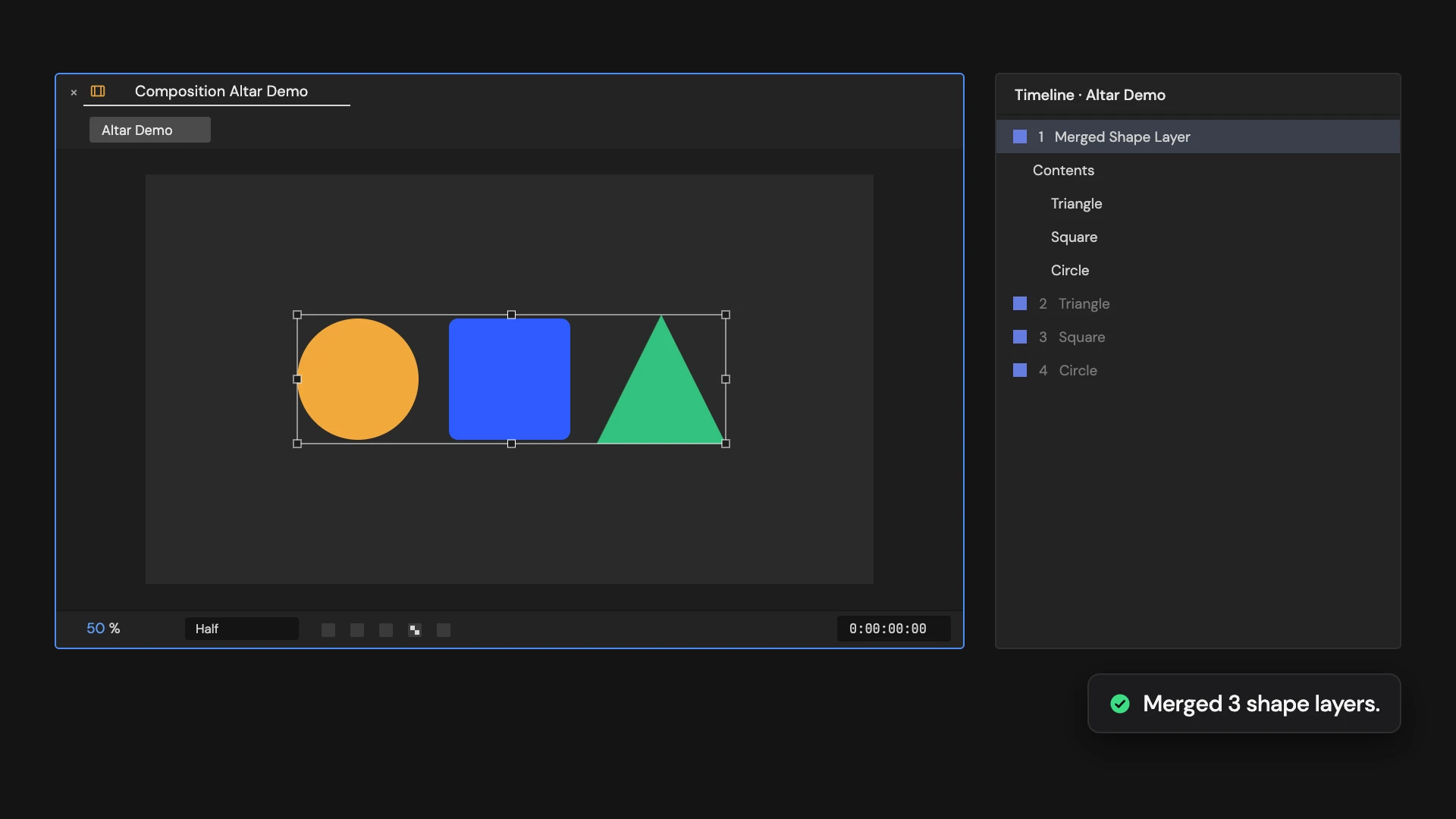
What it does
Copies the shape groups of every selected shape layer into a new layer named Merged Shape Layer, one group per source layer, named after it. Each group keeps its layer’s position, scale, rotation and opacity as they are at the current time. The source layers are turned off; hold Ctrl/Cmd to delete them instead. Select at least two unlocked shape layers.
Controls
- Click: Merge and disable sources
- Ctrl/Cmd: Merge and delete sources
Details
- Category: Shape Tools
- Kind: Script
- Also searched as: shape, merge, combine, layers
Guide
Merge
Select two or more shape layers and click Merge Shape Layers. A new layer called Merged Shape Layer appears at the top of the comp with one group for each selected layer, named after it. Inside each group are that layer’s shape groups.
Each group takes on its layer’s position, anchor point, scale, rotation and opacity, so the merged shapes stay where they were on screen. Parent layers are taken into account. These values are read at the current time: animation on the source layers’ transforms is not carried over.
The source layers
The source layers are turned off and deselected, and the merged layer is selected. Hold Ctrl/Cmd as you click to delete the source layers instead.
Good to know
- Only shape groups are copied. A path, fill or stroke sitting loose at the top of a layer’s Contents, outside any group, is left behind.
- Effects, masks, blending modes, mattes and timing stay on the source layers.
- Unlock the layers first; a locked layer stops the merge before anything changes. One Undo restores everything.