Add Trim Paths Controls.
Add Start, End and Offset sliders for Trim Paths.
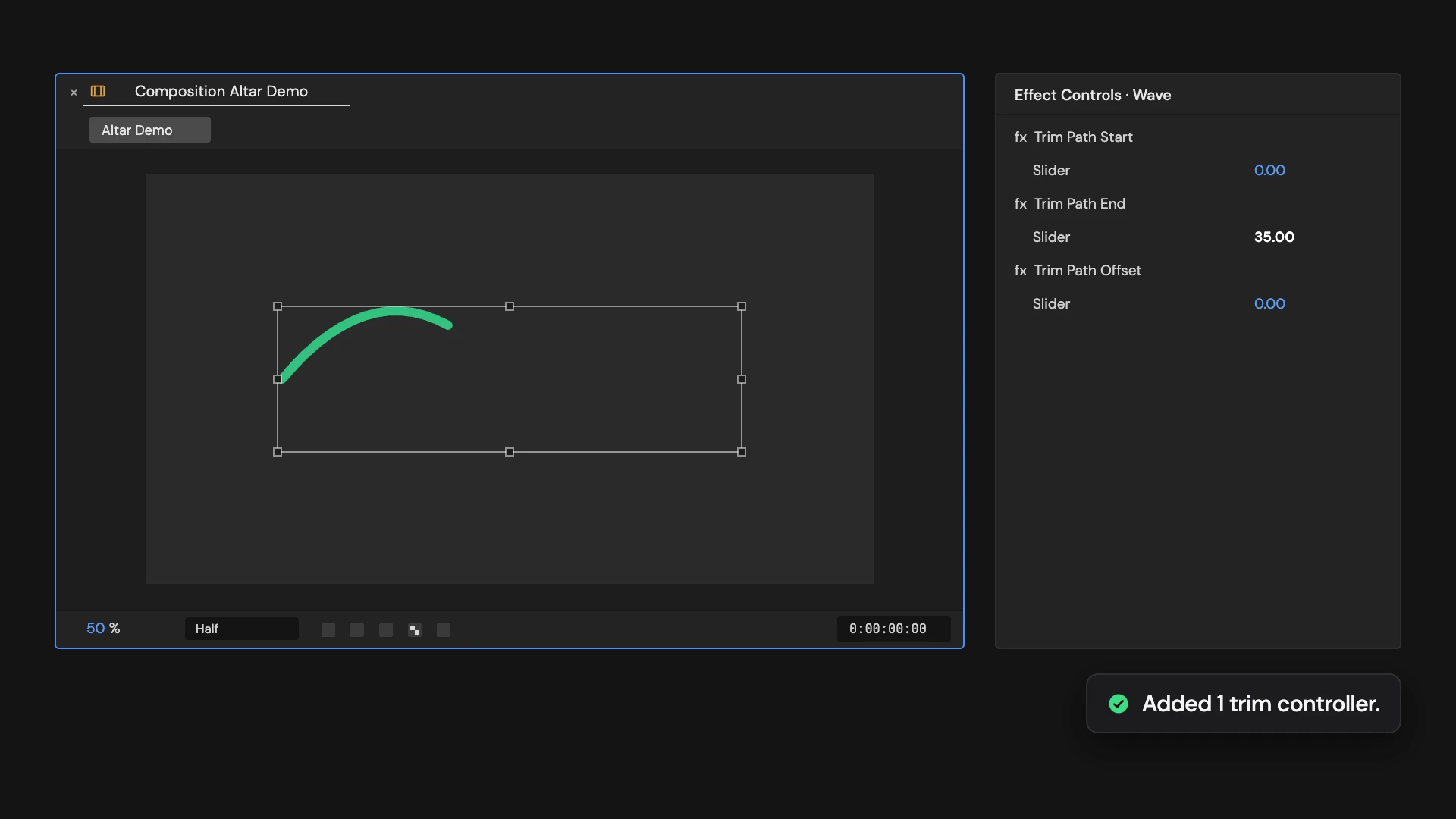
What it does
Adds Trim Paths to each selected shape layer, or to each selected group, and links its Start, End and Offset to new Slider Controls on the layer: Trim Path Start, End and Offset. With several groups selected on one layer, each group gets its own sliders named after it. Running it again adds another Trim Paths with its own sliders.
Controls
- Click: Add trim path controls
Details
- Category: Shape Tools
- Kind: Script
- Also searched as: shape, trim, path, controller, rig
Guide
Add the controls
Select one or more shape layers and click Add Trim Paths Controls. Each layer gets a Trim Paths at the bottom of its Contents, so it trims every path in the layer, and three Slider Controls that drive it:
- Trim Path Start: 0
- Trim Path End: 100
- Trim Path Offset: 0, in degrees
Animate the sliders, or link them to other controls, to draw the shape on and off.
Trim one group at a time
Twirl open Contents and select one or more groups before you click. Each selected group gets its own Trim Paths at the bottom of the group. With several groups selected on one layer, each set of sliders is named after its group, for example Trim - Circle Start.
Good to know
Running it again adds another Trim Paths with new sliders (Trim Path 2 Start and so on), and the two trims combine. One Undo removes the latest set.